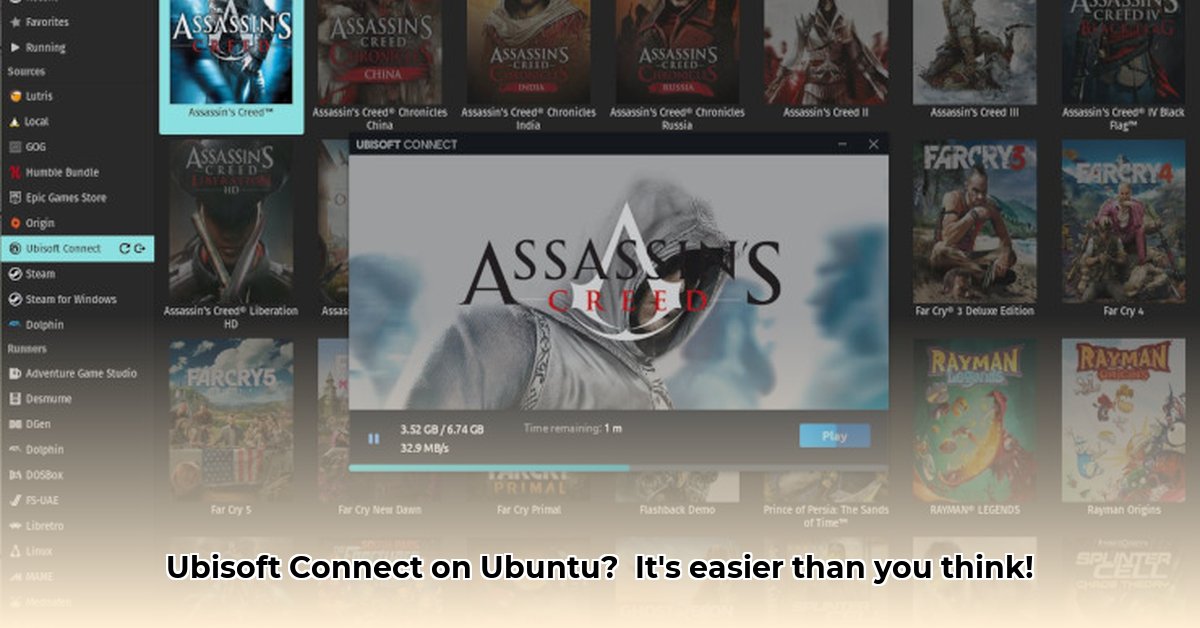
Want to play your favorite Ubisoft games on your Ubuntu system? This guide provides a step-by-step walkthrough for installing Ubisoft Connect, a process that can be surprisingly straightforward with the right tools and techniques. Even if you're new to Linux gaming, you'll be able to follow along and get playing in no time!
Getting Started: Preparing Your Ubuntu System
Before diving into the installation, ensure your Ubuntu system is up-to-date. This is crucial for preventing conflicts and ensuring optimal performance. Think of it as prepping your canvas before starting a masterpiece.
Open a Terminal: Press Ctrl+Alt+T to open a terminal window. This is your command center for managing your system.
Update Package Lists: Execute the following command:
sudo apt update. This command refreshes the list of available software packages, ensuring you have access to the latest versions. It's like checking for the latest menu at your favorite restaurant.Upgrade Existing Packages: Run this command:
sudo apt upgrade. This installs any available updates for your existing software. It's like getting all the latest bug fixes and features for your favorite apps.Reboot Your System: Restart your computer to apply the updates fully. This ensures everything runs smoothly – it's like letting your paint dry before adding another coat!
Installing Essential Tools: Wine and Lutris
Ubisoft Connect is a Windows application, and Ubuntu runs Linux. We need tools to bridge this gap. Wine acts as a translator, allowing Windows applications to run on Linux, and Lutris acts as a game manager, simplifying the installation and configuration process.
Install Wine: Execute this command in your terminal:
sudo apt install wine64. This installs the 64-bit version of Wine, which offers better compatibility with modern games. This might take a few minutes, so be patient; it's like downloading a large game file.Install Lutris: Next, type and execute this command:
sudo apt install lutris. Lutris streamlines the process of installing and managing games, including Ubisoft Connect. It's your game management assistant! Alternatively, you can download it from the official Lutris website.
Installing and Running Ubisoft Connect: The Final Steps
With Wine and Lutris installed, installing Ubisoft Connect becomes surprisingly straightforward.
Launch Lutris: Find the Lutris icon in your applications menu and double-click to launch it.
Search for Ubisoft Connect: Use Lutris's search function to find "Ubisoft Connect".
Install Ubisoft Connect: Select the Ubisoft Connect installer and click to begin the installation. Lutris will guide you through the remaining steps of the installation, often including the process of logging into your Ubisoft account.
Troubleshooting: Addressing Potential Issues
While this process is usually smooth, you might encounter some issues. Here are some common problems and solutions:
Game Crashes: Outdated graphics drivers are a common cause of game crashes. Ensure you've installed the latest drivers from your graphics card manufacturer (Nvidia, AMD, or Intel). Also, experiment with Lutris's compatibility settings - adjusting settings can resolve many issues.
Installation Errors: Carefully review each step to ensure you didn't miss anything. Check for typos in commands or filenames. A reboot can also help resolve temporary issues.
Performance Problems: If a game runs slowly, try adjusting in-game settings to lower visual demands. Closing unnecessary applications can also improve performance.
Additional Tips for a Smooth Experience
Proton: Lutris often leverages Proton, a compatibility layer that enhances the compatibility of Windows games on Linux. Experimenting with different Proton versions might improve performance.
Keep Your Drivers Updated: This can't be stressed enough! Regularly update your graphics drivers for the best performance.
Remember, troubleshooting might involve some experimentation. However, many Linux gamers successfully run Ubisoft Connect, and you can too!
Key Takeaways: Your Success Checklist
- System Preparation is Key: Updating your system before installation is crucial for preventing conflicts.
- Wine and Lutris are Your Allies: These tools simplify the complex process of running Windows apps on Linux.
- Troubleshooting is Part of the Process: Don't be discouraged by minor issues; solutions are often readily available.
Now go forth and enjoy your favorite Ubisoft games on Ubuntu! Happy gaming!
⭐⭐⭐⭐☆ (4.8)
Download via Link 1
Download via Link 2
Last updated: Saturday, May 03, 2025